How to use Casablanca.AI
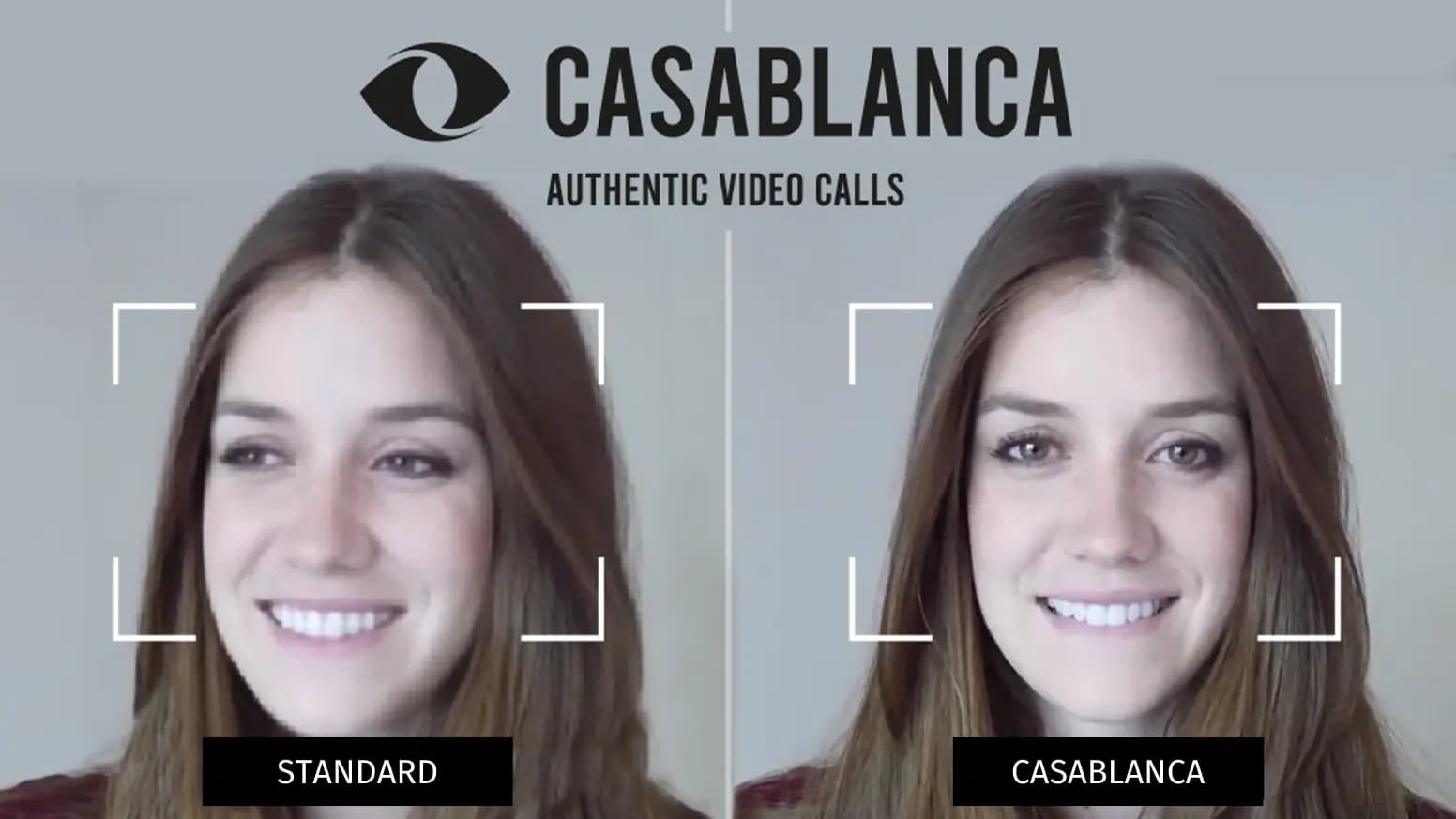
Casablanca corrects your gaze in video calls in real time: instead of looking past the camera, you look at the person you are talking to – as though a small camera were sitting in the middle of your screen. The app runs in the background and all image data stays on your machine. This guide assumes Casablanca is installed, and applies to Mac and Windows.
Ready in three steps
Sign in. On first launch, Casablanca asks for your email address and password; "Try for free" also gets you in without an account for a first look. On the Mac the app sets up the virtual camera during this step and macOS asks once for permission – grant it, otherwise Casablanca will not show up as a camera in Zoom and Teams later on.
Calibrate. This step makes the biggest difference and gets skipped most often – even though it takes thirty seconds. Press C, look at the centre of the screen, then drag the eyes in the photo with the left mouse button until you are looking yourself in the eye. It holds until your setup changes: a new monitor, a new camera position, a different desk.
Switch the camera. Casablanca does not replace your conferencing software, it supplies the picture to it. Choose the "Casablanca Virtual Camera" there instead of your webcam – in Zoom under Settings → Video, in Teams under Settings → Devices, in Meet and Webex under Video. Casablanca has to be running during the call, otherwise the picture stays black.
The right setup
Casablanca compensates for the offset between camera and screen. How well that works depends on what the camera sees:
- Meeting window on the monitor with the camera. If the call runs on your second screen, you are looking past both.
- Light from the front, not from behind. A window behind you turns you into a silhouette, and face detection easily loses track.
- Close enough to the camera. If calibration reports your gaze is turned too far away, the cause is usually the distance or a very oblique camera angle.
- Keep your face clear. Hands in front of your mouth or a low-sitting cap register as occlusion, and Casablanca would rather switch the correction off. Glasses are fine, as long as nothing is reflected in the lenses.
The two eye-contact modes
The app's most important setting – and the only one you should change depending on the situation. Switch mid-call with E.
Natural eye contact corrects only the offset between camera and screen; your real gaze direction is preserved. For conversations, meetings and negotiations.
Presentation mode additionally suppresses horizontal eye movement, so your audience sees continuous eye contact even while you read from your slides. For presentations, webinars and recordings.
Rule of thumb: if you are talking with someone, use natural eye contact; if you are talking to someone, use presentation mode.
The toolbar

From left to right: camera selection, view, eye-contact mode, performance mode and calibration, then the buttons for photo and video, and on the far right the "More" menu with settings, problem reporting, account and quit. After three seconds without mouse movement the bar fades out, and it returns as soon as you move the mouse.
The view menu is especially worth a look, because it is where the app demonstrates what it does: alongside the Casablanca output and the uncorrected source image there are two comparison views. The side-by-side comparison is the fastest way to convince yourself – and to show others what this is about.
Fine-tuning
The performance mode is right on "Automatic": it starts out frugal and switches to quality as soon as your machine holds the frame rate. Thirty fps is the target; below that you switch to performance with P – a toggle that exists only on the Mac.
Advanced mode, which you enable in the settings, adds the teleprompter: open it with W, paste your text, start. Combined with presentation mode you read from the script while your audience sees continuous eye contact. You can record at any time – S saves a photo, R starts and stops a video.
The most important keyboard shortcuts
They work when the Casablanca window is in the foreground; the complete list is in the settings. On Windows, Alt+Shift corresponds to ⌥⇧ on the Mac.
- C – open calibration
- E – toggle presentation mode
- S / R – photo / video recording
- W – teleprompter
- I – show the frame rate
- ⌥⇧V – switch the view
When something goes wrong
- Casablanca is missing in Zoom or Teams: the virtual camera was not fully set up; the app will request administrator rights to finish it. On MDM-managed Macs this needs an exception from your IT department – "Copy diagnostics" puts the necessary details on the clipboard.
- The picture stays black: usually another program is occupying the camera. If the message reads "Camera access required", the permission is missing under Privacy and Security.
- The picture is distorted (Windows): almost always outdated graphics drivers – the app offers you the matching download directly.
If none of that helps, send your diagnostic log to support via More → Report a problem; it contains neither video nor personal documents. Alternatively you can reach us at support@casablanca.ai.
And what about data protection?
We do not see your meetings. All image data is processed locally on your own machine, the AI runs on your own GPU and not in a cloud. That is precisely why Casablanca also works in calls your company would never route through someone else's server.